
Building Reusable Popup Templates with Alias Passing in FactoryTalk Optix
Build truly reusable popup dialogs in FactoryTalk Optix using Types and alias passing — so 50 parameters need one popup, not fifty copies.

The Problem: Copy-Paste Chaos
If you've been developing HMI applications for any length of time, you've probably hit this wall: you need the same popup dialog for 50 different parameters. Maybe it's a setpoint editor, a motor control faceplate, or a valve status popup.
The naive approach? Copy the popup 50 times and manually update each one.
The result? A maintenance nightmare where fixing one bug means touching 50 screens—and inevitably missing three of them.
The Solution: Alias-Driven Templates
FactoryTalk Optix gives us powerful tools for building truly reusable components:
- Types (templates that define structure)
- Instances (copies that inherit from the Type)
- Aliases (dynamic data pointers that can be passed at runtime)
When combined correctly, you can build a single popup template that works for unlimited parameters—each configured in seconds, not minutes.
Let's walk through building a complete parameter editing popup system.
What We're Building
By the end of this tutorial, you'll have:
- A reusable data structure (
BaseParam) for parameter configuration - A popup dialog template (
ConfirmParamPopup) that accepts any parameter - A button template (
OpenParamPopup) that passes data to the popup - Min/Max validation on user input
- Clean separation between template and instance configuration
GitHub Repository: PopupAliasDemo
Step 1: Create the Base Parameter Object
First, we need a data structure that holds everything our popup needs to know about a parameter.
In your project, create a new Object in the Model folder:
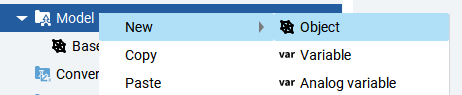
Add these variables to the object:
ParamName(LocalizedText) - Display nameNom(Float) - Nominal/current valueMod(Float) - Modified value (for editing)Min(Float) - Minimum allowed valueMax(Float) - Maximum allowed value
Why LocalizedText for ParamName? If you're planning to support multiple languages, LocalizedText lets you leverage Optix's built-in translation system. Future-proofing pays off.
Step 2: Transform Instance into Type
Here's where the magic happens. Right-click on your object and select Transform Instance into Type:
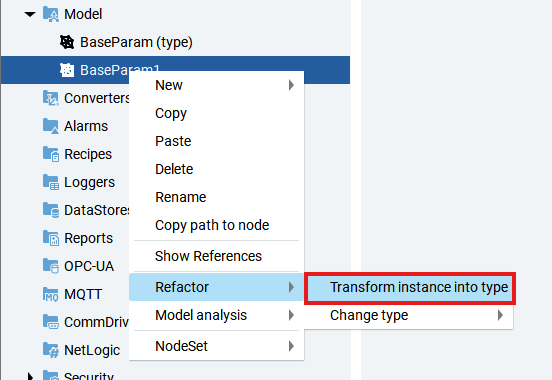
This "templifies" your object. Think of it like creating a UDT (User Defined Type) in PLC programming—except it lives in Optix.
After transformation, your project structure should look like this:
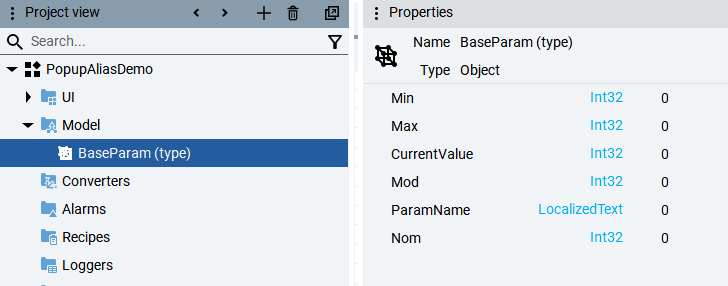
You now have a reusable data structure that can be instantiated anywhere and passed as an alias to dialogs, screens, and templates.
Step 3: Create the Popup Dialog Template
Now let's build the popup that will display and edit parameter values.
Create a new DialogBox template and add an Alias in the properties panel. Set the Kind to your newly created BaseParam type:
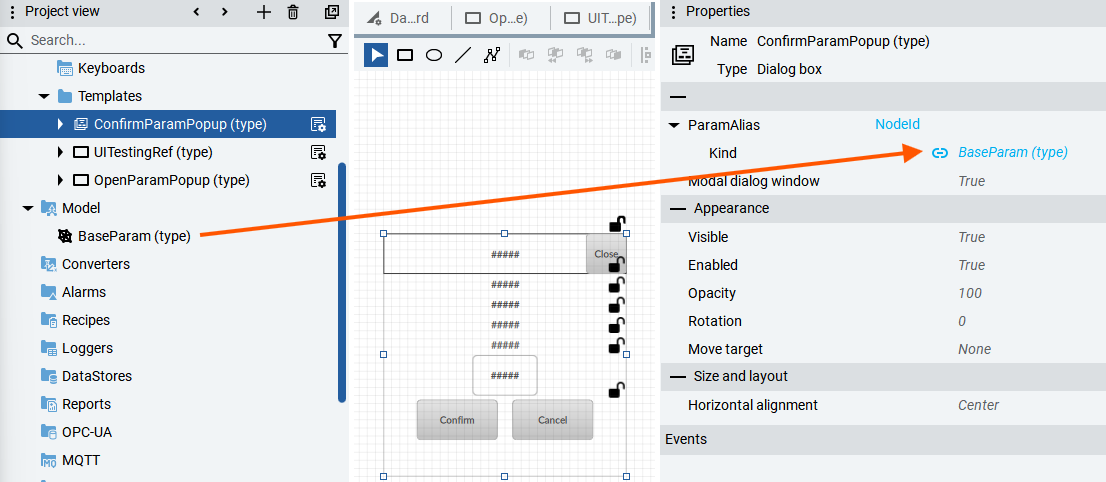
Key Point: Notice that nothing is bound to ParamAlias yet. We're defining what kind of data this popup accepts, not which specific data. The actual binding happens when we open the dialog from a button.
Step 4: Configure the Spinbox with Alias Data
Inside your popup, add a SpinBox for editing the parameter value. Here's where we leverage the alias:
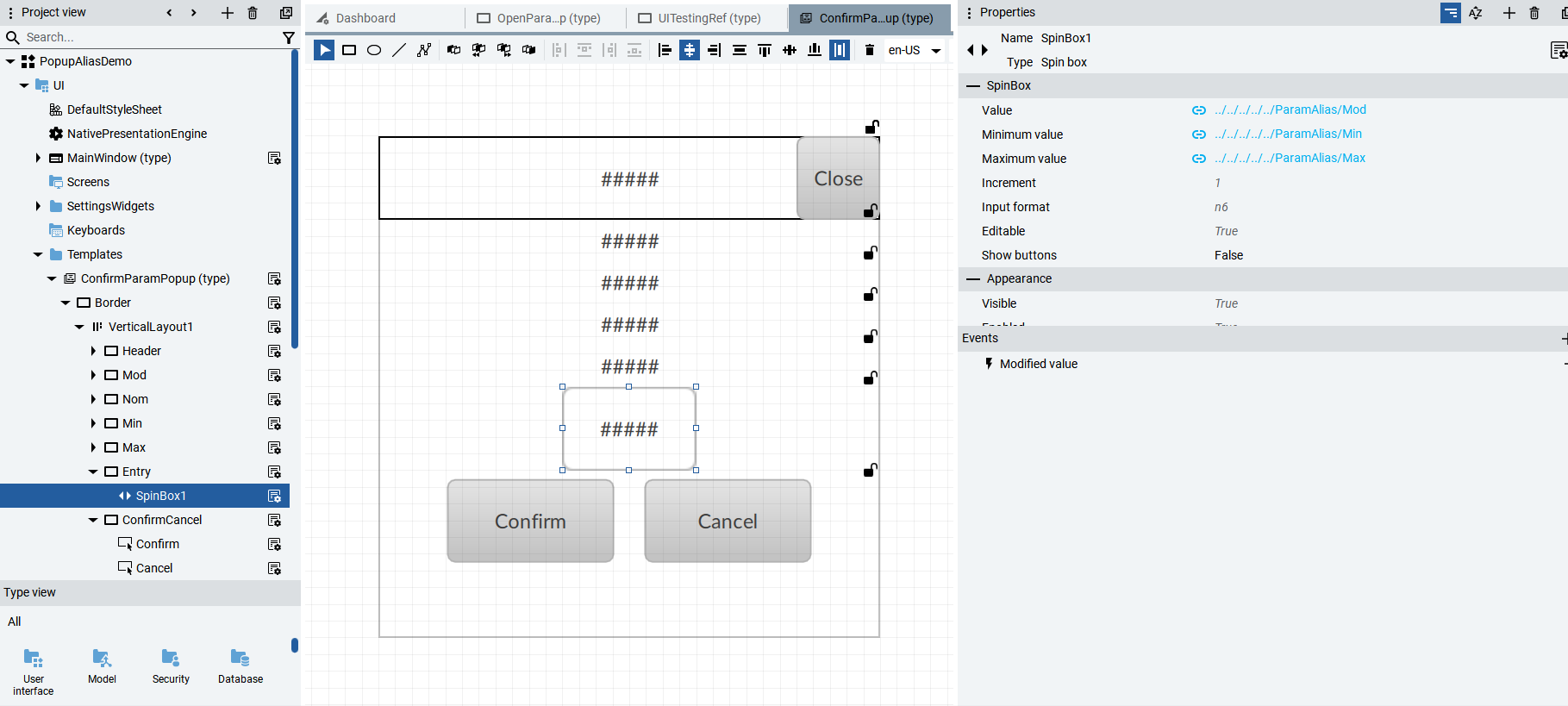
Bind the SpinBox properties:
- Value →
{ParamAlias}/Mod - Minimum →
{ParamAlias}/Min - Maximum →
{ParamAlias}/Max
The spinbox will automatically enforce min/max constraints based on whatever parameter is passed to the popup. No hardcoding required.
Step 5: Add the Set Method to the Button
The confirm button needs to write the modified value back to the nominal value:
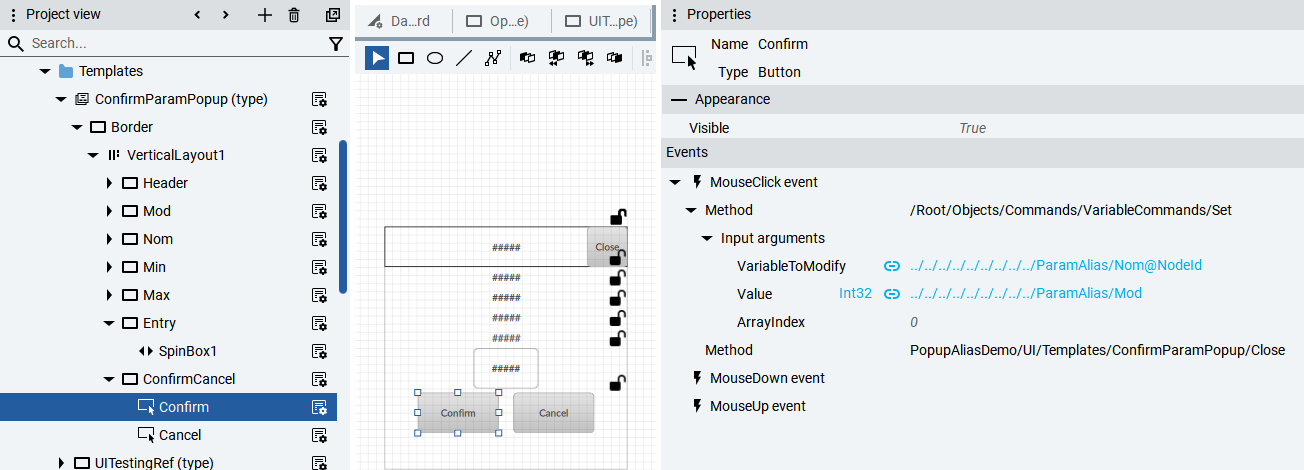
Add a Set method:
- Target:
{ParamAlias}/Nom - Value:
{ParamAlias}/Mod
When the user clicks Confirm, the edited value replaces the original. Simple and clean.
Step 6: Create the Button Template
Now we need a button that can open our popup and pass the appropriate data. Create a new template for the button:
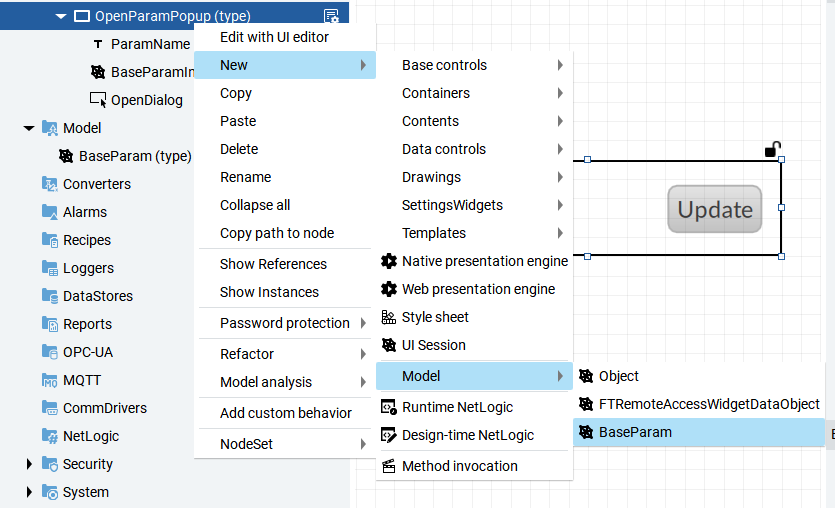
Add an instance of BaseParam to this template. We'll leave the values blank at the template level—they get configured when we place the button on a screen.
Step 7: Configure the Button Methods
The button needs two methods:
- Set - Copy
NomintoMod(so users see the current value when editing) - Open Dialog - Open
ConfirmParamPopupwith our alias
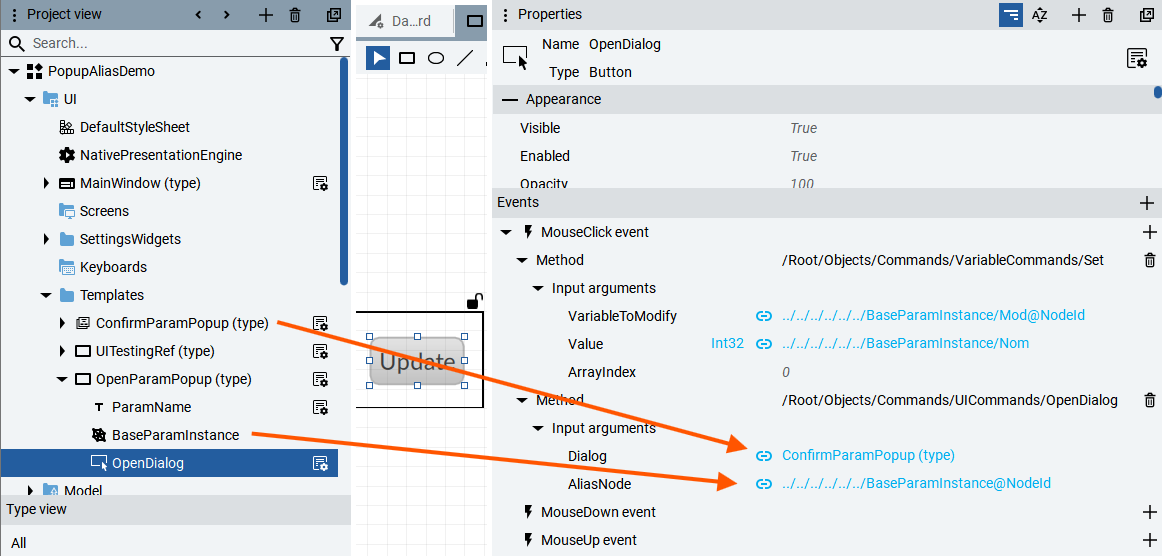
For the Open Dialog method:
- DialogType:
ConfirmParamPopup - AliasNode:
{BaseParamInstance}
This is the key connection—we're telling the dialog "here's the data you should work with."
Step 8: Add the Button to a Screen
Now let's use our template! Right-click and navigate to add OpenParamPopup to a screen:
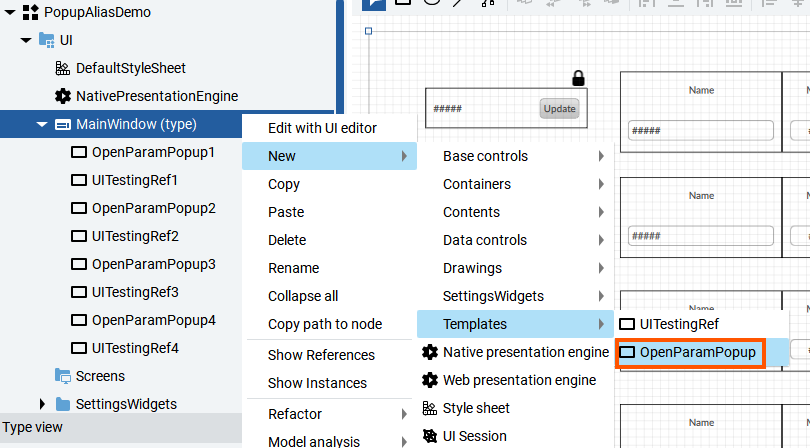
Step 9: Configure the Instance
Here's where you customize each button for its specific parameter. Select the button instance and set the properties:
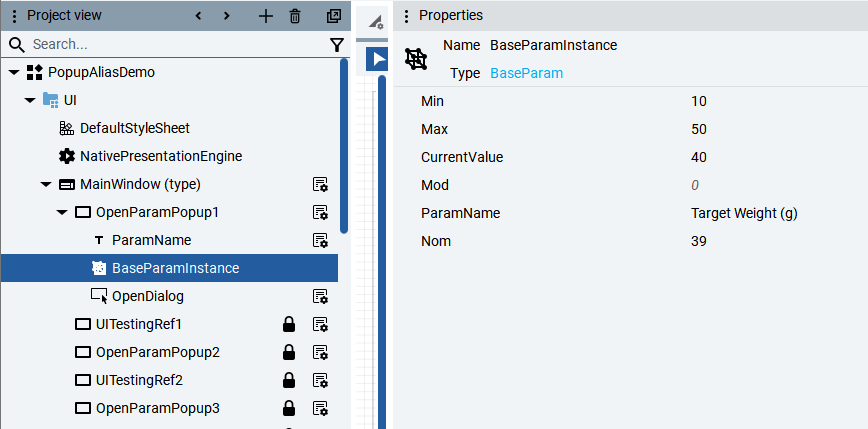
Configure:
- ParamName: "Temperature Setpoint" (or whatever)
- Nom: Bind to PLC tag
- Min: Bind to PLC tag or hardcode
- Max: Bind to PLC tag or hardcode
- Mod: Leave unbound (used internally)
Pro Tip: Everything except ParamName can be bound to PLC tags. ParamName is LocalizedText so it works with Optix's translation system.
Step 10: The Result
Here's the finished system in action:
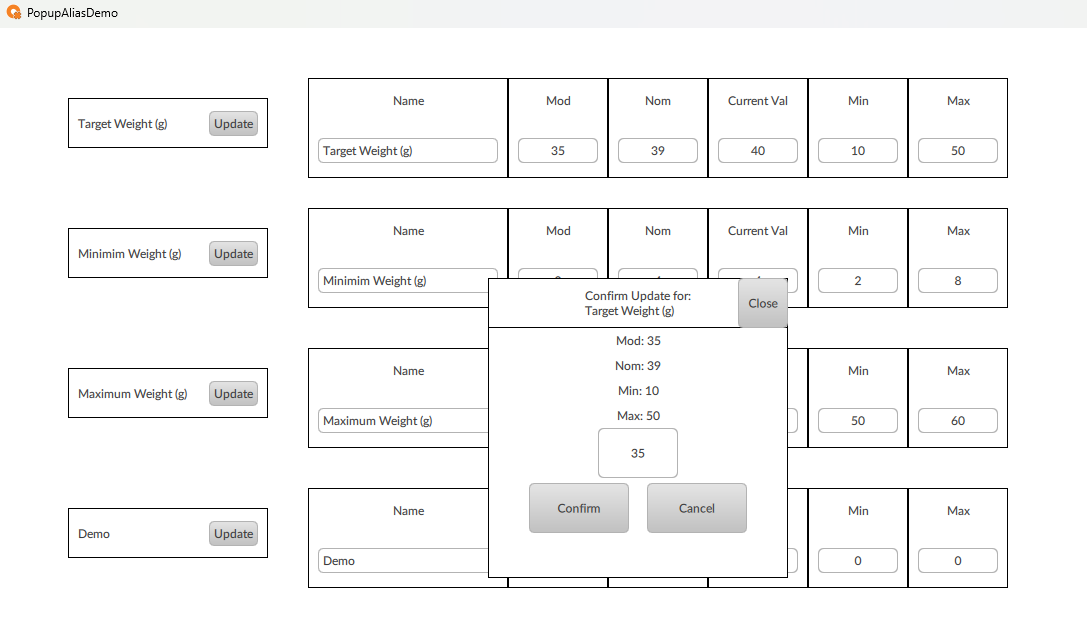
- Click any parameter button → Popup opens with that parameter's data
- Edit within min/max constraints → Spinbox enforces limits
- Click Confirm → Value writes back to PLC
- Click Cancel → No changes made
One template, unlimited parameters.
Key Takeaways
Why This Approach Works
| Traditional Approach | Alias-Driven Templates |
|---|---|
| Copy popup for each parameter | Single popup template |
| Hardcode min/max in each | Min/max from alias data |
| Bug fix = touch every copy | Bug fix = update template once |
| 50 parameters = 50 popups | 50 parameters = 1 popup + 50 configs |
The Type/Instance Pattern
This pattern applies everywhere in Optix:
- Faceplates for motors, valves, drives
- Trend templates with dynamic tag binding
- Alarm displays with equipment-specific filtering
- Navigation templates with configurable destinations
Once you internalize this approach, you'll see opportunities everywhere.
Common Gotchas
1. Alias Kind Must Match
If your dialog expects BaseParam but you pass something else, it won't work. The Kind property must match exactly.
2. Transform Before Instantiating
Create your Type before making instances. If you create instances first, you'll have to redo them after transforming.
3. LocalizedText for User-Facing Strings
Using String instead of LocalizedText for display names works but locks you out of translations later. Start with LocalizedText.
Download the Complete Project
Grab the working example from GitHub:
Optix ProjectThe repository includes:
BaseParamType definitionConfirmParamPopupdialog templateOpenParamPopupbutton template- Demo screen with multiple parameter buttons
- Emulator configuration for testing
Need Help Implementing This?
Building reusable templates is just the beginning. At ASQI, we help manufacturers:
- Architect scalable HMI systems that grow with your operation
- Convert legacy FactoryTalk View projects to modern Optix applications
- Train your team on Optix best practices and patterns
Contact us for a free consultation on your next Optix project.
Related Articles
The Architecture Advantage — The strategic case for the reusable template patterns demonstrated here.
Development Best Practices for Optix — Project structure standards that support template-driven development.
Optix Layout & Positioning — Positioning techniques to use inside your reusable templates.