
Optix Layout & Positioning: Avoiding Common Gotchas
Optix's layout system is powerful but comes with a learning curve. Optix uses flexible layouts with anchoring, stretching, and nested containers — master the gotchas.

How to leverage dynamic resizing
Your screen looked perfect in Optix Studio and when testing on the emulator. You deployed to the Panel. Everything shifted.
If you're coming from a traditional HMI, Optix's layout system will trip you up. Most use absolute X,Y positioning; place a button at (100, 200), and it stays there. Optix uses a flexible layout engine that's powerful once you understand it, but frustrating until you do.
For OEMs deploying to different panel sizes, understanding Optix layouts is essential. Template instances need to work on different sized panels without custom sized layouts.
This guide covers the layout fundamentals, the common mistakes, and how to design screens that look right on any resolution.
The Layout Fundamentals
Stretch vs. Auto: The Core Decision
Every container and component in Optix has sizing behavior:
| Mode | Behavior |
|---|---|
| Stretch | Fill the parent container |
| Auto | Size to content |
The rule: Let Optix handle sizing where possible. Avoid hardcoded pixel dimensions unless you have a specific reason.
Stretch vs. Auto Visualized
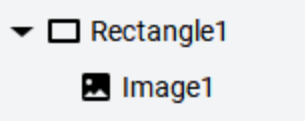
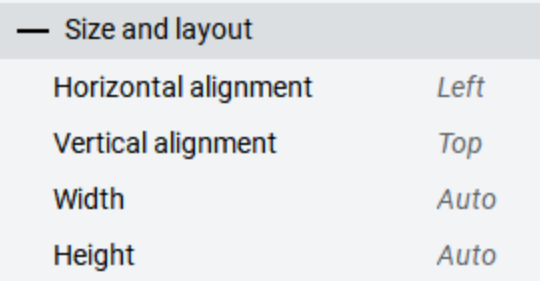
An image is nested inside a rectangle with Auto Height / Width
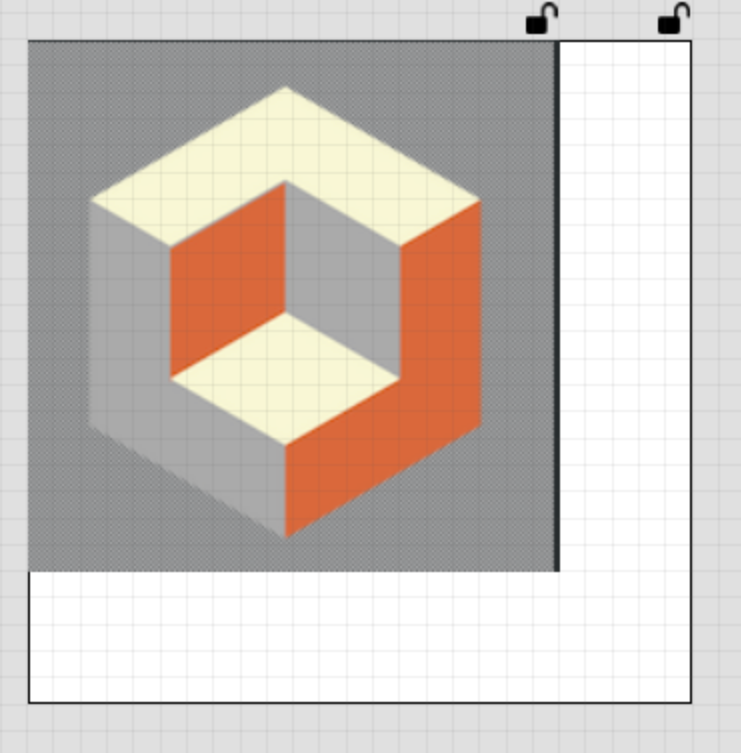
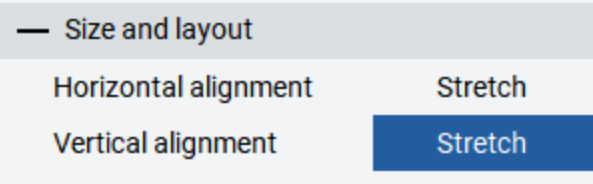
Switching to stretch on both expands the image to its parent component:

Anchoring: Lock Edges to Parent
Anchoring controls how a component responds when its parent resizes:
Consider this button nested in a rectangle:
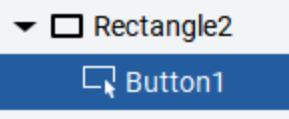
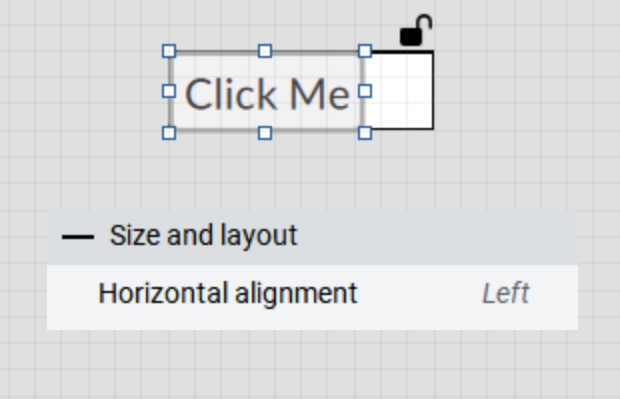


Same logic applies to Top/Bottom for vertical behavior.
The Gotchas (And How to Avoid Them)
Gotcha #1: How do I activate Auto / Stretch
You've bought the utility of responsive design and want to implement it, but how?
The fix:
- Change the Vertical / Horizontal Alignment property to stretch
- This removes the Height or Width static property
- Insert "-1" into the Height or Width property (note that this only works if you're not using stretch on said component).
- It needs to be Auto from somewhere (Left, Right, Top or Bottom)
Gotcha #2: Nesting Layouts
The problem: Nesting Horizontal/Vertical layouts inside other layouts or scroll views produces unexpected sizing.
What happens: Inner layouts may collapse, overflow, or ignore their expected dimensions. The interaction between nested Auto/Stretch modes creates edge cases.
The fix:
- Use a parent component with absolute size, Scroll View that stretches to those boundaries, and a Layout that has an Auto size to the direction of the Layout
Example scenario: You have a Vertical Layout inside a ScrollViewer. The Vertical Layout is set to Stretch. The scroll never activates because the layout expands to fit all content.
Solution: Set the Scroll View to Stretch to its parent component, so it sizes to content and enables scrolling. Set the Vertical Layout to Top Vertical Alignment and Auto on the Height. This ensures that the scroll bar appears when there's enough to need it. Applying this for Horizontal scrolls is just the inverse.
Layout Containers: Horizontal & Vertical
Layout containers automatically arrange children:
| Container | Behavior |
|---|---|
| Horizontal Layout | Children flow left-to-right |
| Vertical Layout | Children flow top-to-bottom |
Here's how to set it up properly:
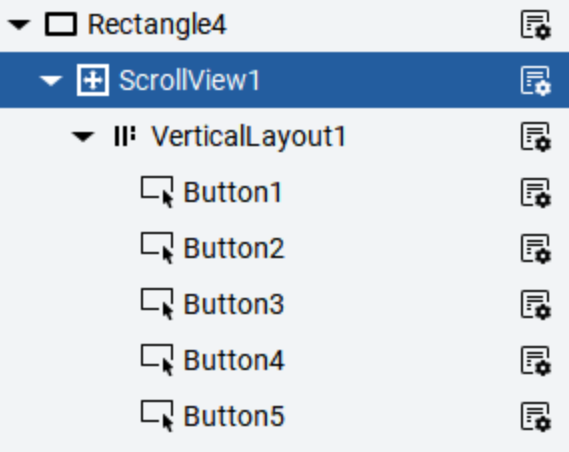
Parent Component > Scroll View > Vertical Layout

Stretch the alignments to meet your Parent Component

Stretch the Horizontal - we just want to use all this space
Keep Vertical at top and set the Height to "-1" so we use the space needed by the Buttons in the Layout
The components within a Scroll View + Layout will resize and move locations appropriately when visibility is toggled. This makes programming easy because you can conditionally render some components invisible and not have to move any elements around to fill gaps.
Gotcha #3: Z-Order Surprises
The problem: Component z-order (what's on top of what) follows the Project View tree order, but it may be the reverse of what you expect.
What happens: Lower in the project view means closer to the eyeballs.
The fix:
- Remember: Lower in the Project View tree = higher z-order (drawn on top)
- Drag components in the Project View to reorder
- Use Collapse All frequently to see the tree structure clearly
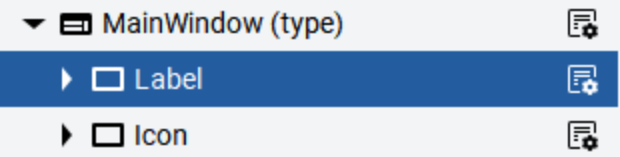
Say a label is "above" an icon
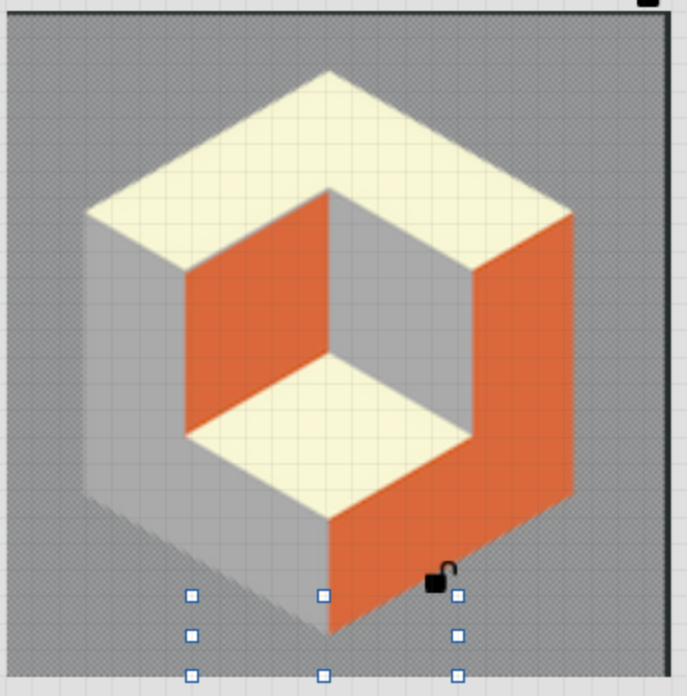
It won't be visible in Studio or at Runtime
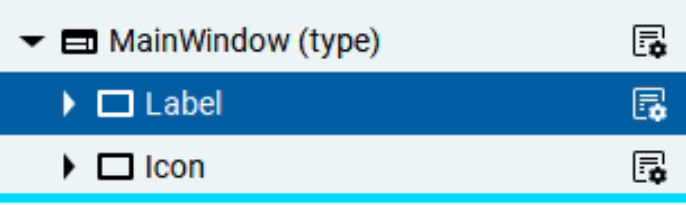
Click and drag the label lower in the tree (notice the teal line)
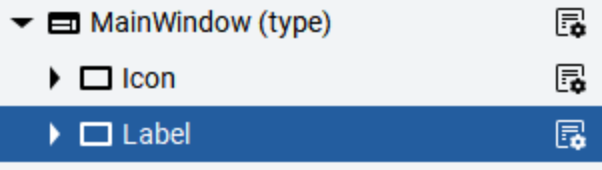
Drop it
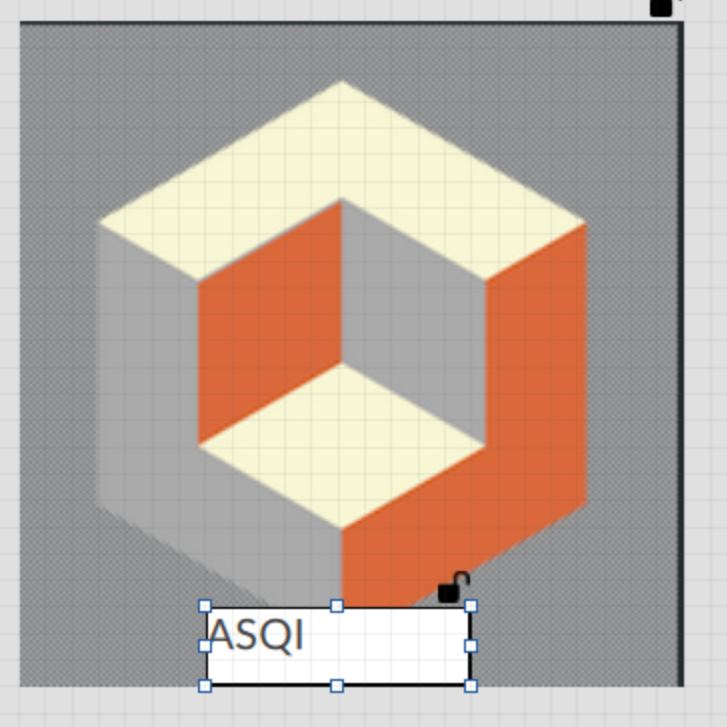
Now it's visible
Gotcha #4: Invisible Interactive Elements
The problem: You layer elements. Maybe using opacity for visual effects, or popups. Popups can't be made invisible in the design environment.
What happens: Transparent or semi-transparent elements on top of interactive elements intercept clicks even though they're visually "invisible."
The fix:
- Don't layer invisible/translucent interactive elements
- Use Visibility and Enablement properties instead of Button Blockers for show/hide
- Utilize the Dialog Window functionality for Popups instead of overlays
Layout Anti-Patterns to Avoid
Before we move on, here are the patterns that cause the most pain:
The "Fixed Everything" Approach
- What it is: Setting exact pixel dimensions on every component
- Why it fails: Doesn't adapt to different resolutions
- Fix: Use Auto/Stretch and let Optix handle sizing
The "Invisible Layering Trick"
- What it is: Placing transparent buttons over other elements for complex hit areas
- Why it fails: Breaks accessibility, confuses maintenance, causes click-through issues
- Fix: Use Visibility and Enable properties; restructure your component hierarchy
The "Scale Layout Fix-All"
- What it is: Using Scale Layout to avoid learning real layouts
- Why it fails: Aspect ratio changes destroy your design
- Fix: Learn Horizontal/Vertical layouts properly; it's a one-time investment
The "Deep Nesting" Approach
- What it is: 4+ levels of nested layout containers
- Why it fails: Sizing becomes unpredictable; debugging is a nightmare
- Fix: Flatten hierarchy; use absolute positioning for complex arrangements
ISA-101 UX Standards Reference
If you're designing industrial HMI screens, follow established standards. ISA-101 provides guidelines for operator displays that reduce errors and improve situational awareness.
Key ISA-101 Principles for Layout
| Principle | Implementation |
|---|---|
| Consistency | Use the same layout patterns across all screens |
| Hierarchy | Important information at top-left (for LTR languages) |
| Color for meaning | Don't use color as the only indicator—add shape/text |
| Minimal clutter | Show what's needed for the task, hide the rest |
| Predictable navigation | Same nav location on every screen |
Typography Guidelines
- Alarms/Critical values: Larger, high-contrast
- Labels: Consistent size, positioned consistently relative to values
- Status text: Clear hierarchy (primary vs. secondary information)
For the full ISA-101 standard, see ISA-101.01 Human Machine Interfaces. The actual standard chosen is not as important as selecting one and standardizing to it.
Debugging Layout Issues
When something looks wrong, work through this checklist:
Step 1: Check Sizing Mode
- Is it Auto when it should be Stretch? Or vice versa?
Step 2: Check Anchoring
- Are anchors set correctly for the intended behavior?
Step 3: Check Parent Containers
- What's the parent's sizing mode?
- Is there a layout container involved?
Step 4: Test in Emulator at Different Sizes
- Resize the emulator window
- Does the layout respond as expected?
Step 5: Simplify
- Remove nested containers
- Test with a minimal reproduction
- Add complexity back incrementally
Quick Reference: Layout Properties
| Property | Values | Effect |
|---|---|---|
Width / Height |
Number, Auto (-1) | Size of component |
HorizontalAlignment |
Left, Center, Right, Stretch | Alignment in parent |
VerticalAlignment |
Top, Center, Bottom, Stretch | Alignment in parent |
Margins |
Number | Space inside component |
Conclusion
Optix's layout system is more powerful than ME's absolute positioning, but that power comes with complexity. The keys to success:
- Use Scroll View > Layout and their properties shown above
- Understand Stretch vs. Auto and apply them intentionally
- Test nesting scenarios before committing to complex layouts
- Avoid Scale Layout unless you control the hardware exactly
- Follow a set of standards for professional, operator-friendly screens
When in doubt, simplify. A working layout that's slightly less elegant beats a broken layout that's theoretically perfect.
Next Steps
Need help with complex layouts?
Related Articles
Development Best Practices for Optix — Project structure and coding patterns that support good layout design.
Building Reusable Popup Templates — Apply layout principles to popup template design with alias passing.
Optix Tips and Tricks — More practical tips including layout-related gotchas.