
Testing FactoryTalk Optix 1.8 High Availability on three VMs
How we set up a FactoryTalk Optix 1.8 High Availability cluster on three VMs, the snags we hit, and the failover times we measured.

FactoryTalk Optix 1.8 adds High Availability (HA): one runtime application runs on a three-node cluster, and clients connect to a single virtual IP that always points at the active node. This is how we set it up, the snags we hit, and the failover times we measured.
What it is (and isn't)
HA is runtime redundancy: one active node and two warm standbys. Under the hood it is K3s (lightweight Kubernetes), a MariaDB Galera cluster for shared retentivity data, and keepalived for the virtual IP. When the active runtime or its node dies, a standby is promoted and starts the application.
- Only retentivity data is shared between nodes. Data loggers and embedded databases aren't synced; Rockwell's guidance is to log to an external database.
- Failover is a restart on another node, not a hot mirror. Web clients go back to the start screen.
- The cluster tolerates one node failure. Lose two and everything stops until they come back.
What you need
| Item | Detail |
|---|---|
| Nodes | 3 × Ubuntu 22.04, 4 vCPU, 8 GB, 50 GB |
| Addresses | 3 static IPs + 1 free IP for the virtual IP |
| Workstation | Windows, Optix Studio 1.8.0.555 |
| Download | FactoryTalk Optix High Availability v1.0.0 (PCDC) |
| Internet | nodes and workstation, during install |
- All four addresses go on the same subnet with no router between the nodes. Ping the virtual IP first to make sure nothing answers.
- The PCDC zip holds HA Manager 1.0.5 (a Windows app, no install) and HA Package 1.0.4 (
.tar.gz,.sig,.pub). The package ships runtime 1.8.0.555, so Studio has to match. - The container images are in the package. The nodes need internet to download K3s; the workstation needs it because HA Manager installs kubectl with winget.
1. Prepare the nodes
Each node needs a sudo user, the SSH server, and synced time. Ubuntu cloud images ship with SSH password login turned off. HA Manager logs in with a password once, pushes its own key, and uses key auth afterwards, so turn password login on first:
sudo apt-get install -y chrony openssh-server
D=/etc/ssh/sshd_config.d
echo 'PasswordAuthentication yes' | sudo tee $D/10-ha.conf
# cloud images only:
sudo sed -i 's/no$/yes/' $D/60-cloudimg-settings.conf
sudo systemctl reload ssh
You can turn password login back off once the cluster is installed.
Check the clocks. All three nodes must be within 1 s of each other; skew shows up later as authentication, demo-mode or licensing errors.
chronyc tracking | grep -E 'System time|Leap'
Use letters and digits only for the node names and hostnames (optixha1, not optix-ha1). The wizard rejects anything else.
2. Install the cluster with HA Manager
Run HA Manager on the workstation, click New cluster, and work through five tabs.
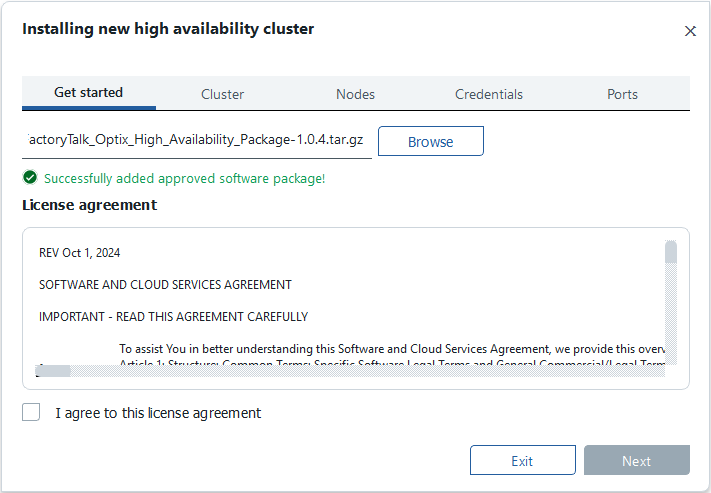
Get started: select the .tar.gz and keep the .sig and .pub in the same folder. The signature is checked straight away. The license checkbox stays greyed out until you scroll to the bottom of the license.
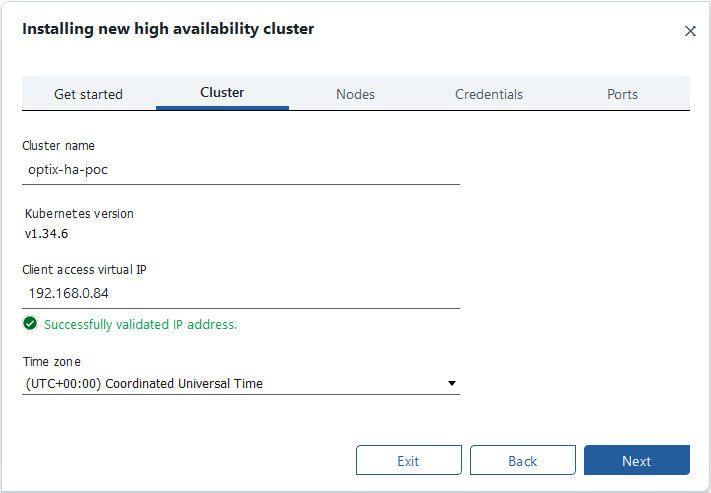
Cluster: a name, the free virtual IP, and the time zone. The K3s version is fixed (v1.34.6). If you see "This IP is already in use", something already answers on that address. Pick another one.
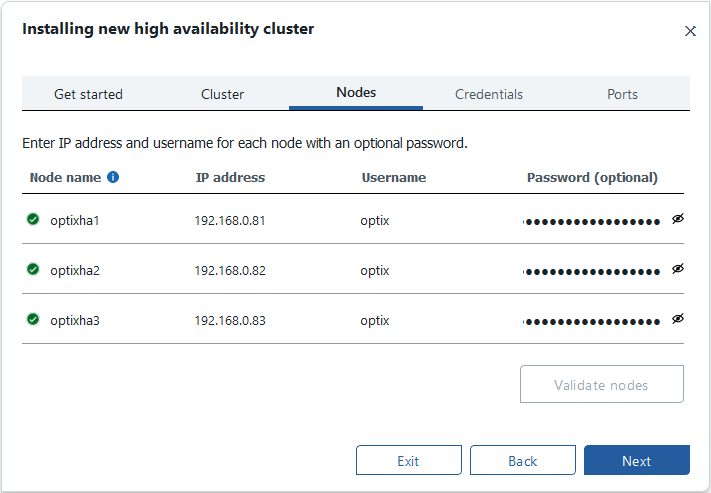
Nodes: name, IP, user and password for each node, then Validate nodes. Accept each node's SSH host key; you can compare the fingerprint with ssh-keygen -lf /etc/ssh/ssh_host_ed25519_key.pub on the node. Validation also checks that the node clocks agree.
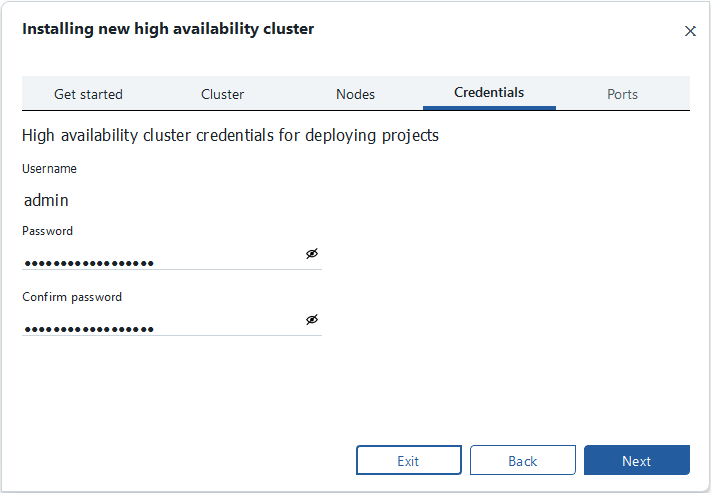
Credentials: the admin password Studio uses to deploy. It must be 16–20 characters.
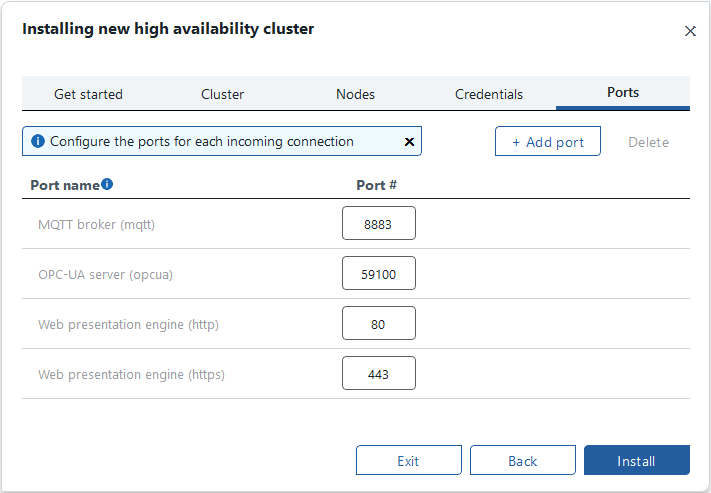
Ports: defaults are 80/443 (web), 59100 (OPC UA) and 8883 (MQTT). Your project has to use the same ports.
Click Install. It took about 15 minutes for us.
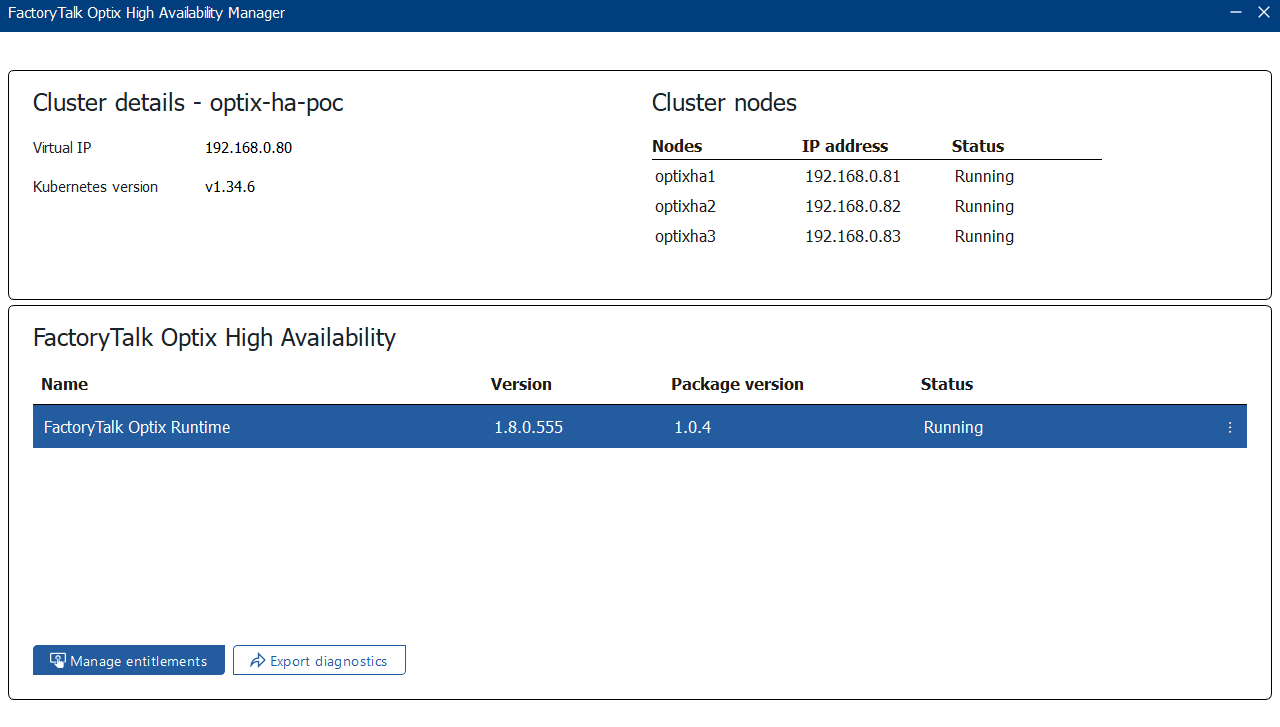
If something fails, the GUI message is short. A node that "could not connect" was, for us, the SSH password-login setting. The detail is in the HA Manager log:
%LOCALAPPDATA%\Rockwell Automation\
  FactoryTalk Optix High Availability Manager\logs\
3. Deploy a project
After install, the runtimes wait in an Init state and the virtual IP doesn't serve a page. That's expected: they are waiting for the first deploy.
In the project:
- Add a HighAvailability object to the HighAvailability folder. The 1.8 project template already has the folder.
- Add a WebPresentationEngine on the cluster's web port (80 by default).
- Set up retentivity for anything that must survive a failover.
Then deploy from Studio to the virtual IP, user admin, with the password from the Credentials tab. Studio also needs to reach port 49100 on the cluster (the update service).
For scripted deploys, the Studio command line works too. It needs the update server's certificate thumbprint, which you can read on any node:
sudo k3s kubectl -n ftoptix exec \
  deploy/ftoptix-core-ha-updateserver -- sha1sum \
  /opt/FTOptixApplicationUpdateService/Data/PKI/Own/Certs/FTOptixApplication.der
$env:OPTIX_STUDIO_DEPLOYMENT_PASSWORD = '<admin password>'
FTOptixStudio.exe deploy MyProject.optix `
  --ip-address=<virtual IP> --username=admin `
  --thumbprint=<sha1 from above> `
  --disable-project-encryption `
  --disable-source-project-transfer `
  --run-after-deploy
To see which node is active, run this on any node:
sudo k3s kubectl -n ftoptix get pods -l component=runtime \
  -L ftoptix.io/active-runtime -o wide
The active runtime shows true and 2/2 ready. The standbys show 1/2 ready, which is normal.
4. Failover: what we measured
We polled the web page on the virtual IP every 0.25 s and broke things, one run per test:
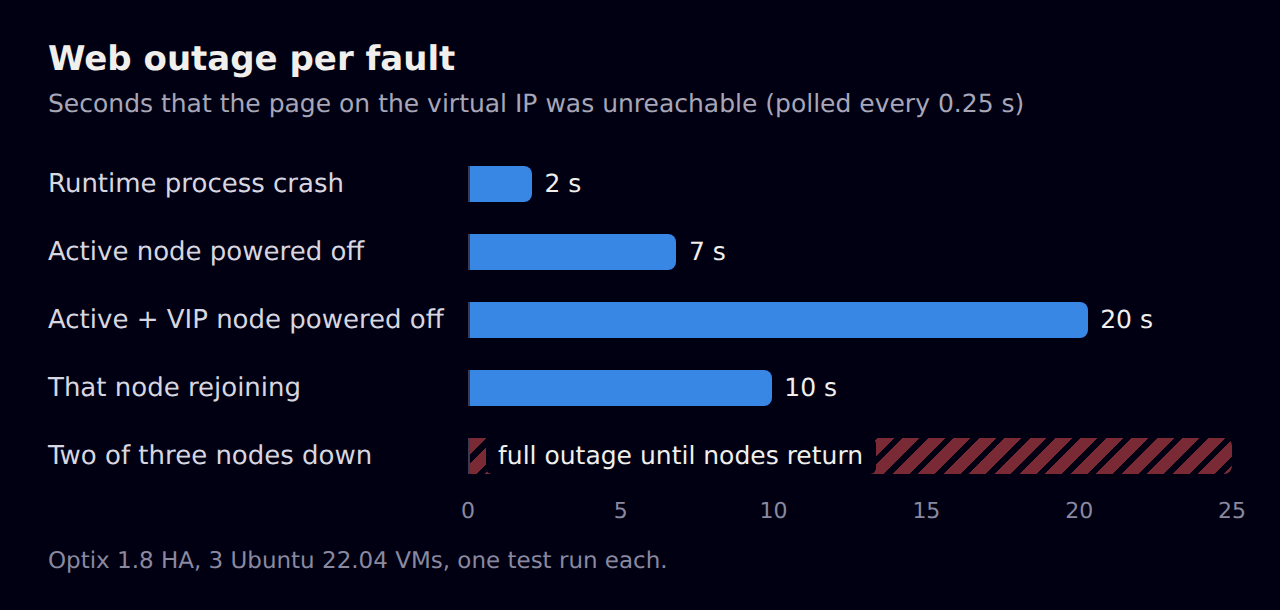
- Runtime crash (2 s) and active node powered off (7 s): the standby takes over before Kubernetes has even marked the dead node as down.
- Active node that also holds the virtual IP (20 s): keepalived has to move the address as well. Budget ~20 s for the worst single-node failure.
- That node coming back (10 s): the first node takes the virtual IP back when it rejoins, causing a second short outage. Plan repairs for a quiet moment.
- Two of three down: no endpoint at all, not even on the surviving node's own IP. It recovered on its own about 3 minutes after the nodes were powered back on, and took about 5 minutes to get all three runtimes healthy again.
Two more design notes:
- With two nodes on one hypervisor, losing that host takes the whole cluster down. This is why production wants three separate machines.
- The virtual IP uses VRRP group 7. Check for conflicts if the network already runs VRRP, or before adding a second cluster on the same network.